Developer Productivity Toolchain: Raycast, direnv, mise, just, and nushell
Developer Productivity Toolchain: Raycast, direnv, mise, just, and nushell
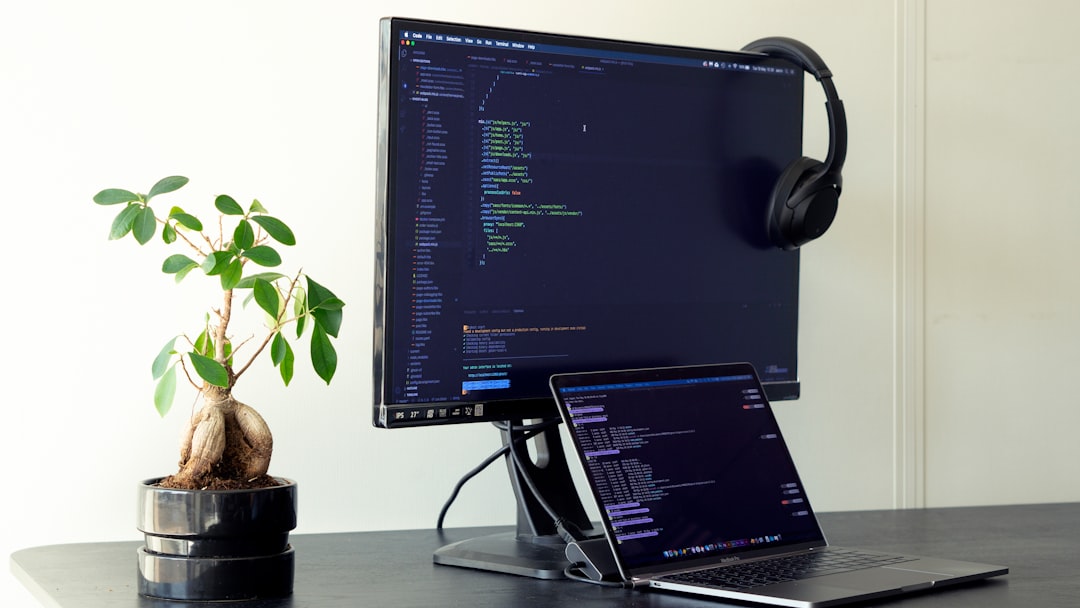
Photo by WebFaster on Unsplash
The difference between a fast developer and a slow one is rarely about typing speed or algorithmic knowledge. It is about the toolchain -- the dozen small tools that save 5 seconds each, hundreds of times a day. A launcher that opens the right project in two keystrokes. An environment manager that activates the right Node version when you enter a directory. A task runner that replaces a wall of Makefile syntax with readable commands.

This guide covers tools that compound. Each one saves a small amount of time, but together they transform how you interact with your machine.
Raycast / Alfred: Application Launchers on Steroids
Application launchers are the entry point to your workflow. Raycast (macOS, free) and Alfred (macOS, paid for advanced features) replace Spotlight with something programmable. On Linux, Ulauncher and Albert fill the same role.
Raycast Configuration
Raycast's power comes from extensions and custom scripts.
# Install Raycast extensions via the store:
# - GitHub: search repos, PRs, issues without opening a browser
# - Docker: manage containers from the launcher
# - Jira/Linear: create and search tickets
# - Clipboard History: searchable clipboard with pinned items
# - Snippets: text expansion (e.g., "@@email" → your email)
Custom Raycast Script Commands
#!/bin/bash
# ~/.config/raycast/scripts/new-branch.sh

# Required parameters:
# @raycast.schemaVersion 1
# @raycast.title New Git Branch
# @raycast.mode compact
# @raycast.argument1 { "type": "text", "placeholder": "branch name" }
# @raycast.packageName Developer

cd ~/projects/current || exit 1
git checkout -b "feature/$1"
echo "Created branch feature/$1"
#!/bin/bash
# ~/.config/raycast/scripts/docker-restart.sh

# @raycast.schemaVersion 1
# @raycast.title Restart Docker Compose
# @raycast.mode compact
# @raycast.argument1 { "type": "text", "placeholder": "service name" }
# @raycast.packageName Docker

cd ~/projects/current || exit 1
docker compose restart "$1"
echo "Restarted $1"
Linux Alternative: Ulauncher
// ~/.config/ulauncher/shortcuts.json
{
  "shortcuts": [
    {
      "keyword": "gh",
      "cmd": "xdg-open https://github.com/search?q=%s",
      "name": "GitHub Search"
    },
    {
      "keyword": "docs",
      "cmd": "xdg-open https://devdocs.io/#q=%s",
      "name": "DevDocs Search"
    }
  ]
}
direnv: Automatic Environment Per Directory
direnv loads and unloads environment variables when you enter and leave a directory. No more running source .env manually, no more accidentally using production credentials in development.
Setup
# Install
brew install direnv  # macOS
sudo apt install direnv  # Debian/Ubuntu
sudo dnf install direnv  # Fedora

# Add to shell (add to ~/.bashrc or ~/.zshrc)
eval "$(direnv hook bash)"
# or
eval "$(direnv hook zsh)"
Usage
# In your project directory, create a .envrc file
# .envrc
export DATABASE_URL="postgres://localhost:5432/myapp_dev"
export REDIS_URL="redis://localhost:6379"
export AWS_PROFILE="myapp-dev"
export NODE_ENV="development"

# Allow the file (required for security -- direnv won't run untrusted .envrc)
direnv allow

# Now when you cd into this directory, these vars are set
# When you cd out, they're unset
Advanced: direnv Stdlib
direnv includes a standard library of helper functions.
# .envrc

# Load a .env file (Docker-compatible format)
dotenv

# Use a specific Node.js version (via nvm)
use node 20

# Use a specific Python version (via pyenv)
use python 3.12

# Add local bin to PATH (useful for project-specific tools)
PATH_add bin
PATH_add node_modules/.bin

# Source another envrc (for shared team configuration)
source_env ../.envrc.shared

# Load secrets from a file outside the repo
source_env ~/.secrets/myapp.env

# Set layout for language-specific conventions
layout python    # Creates and activates a virtualenv
layout node      # Adds node_modules/.bin to PATH
layout ruby      # Sets up GEM_HOME
Team Configuration
# .envrc.template (committed to git)
# Copy to .envrc and fill in values
export DATABASE_URL="postgres://localhost:5432/myapp_dev"
export API_KEY=""  # Get from 1Password vault
export STRIPE_KEY=""  # Get from Stripe dashboard (test mode)

# .gitignore
.envrc
!.envrc.template
mise (formerly rtx): Universal Version Manager
mise replaces nvm, pyenv, rbenv, and every other language-specific version manager with a single tool. It is fast (written in Rust), supports every language, and integrates with direnv.
Setup
# Install
curl https://mise.run | sh

# Add to shell
echo 'eval "$(mise activate bash)"' >> ~/.bashrc
# or
echo 'eval "$(mise activate zsh)"' >> ~/.zshrc
Usage
# Install tools
mise use node@20       # Install and set Node 20 for this directory
mise use [email protected]   # Install and set Python 3.12
mise use [email protected]       # Install Go 1.22
mise use bun@latest    # Install latest Bun
mise use [email protected] # Even non-language tools

# Global defaults
mise use --global node@20
mise use --global [email protected]

# List installed versions
mise list

# Project-specific versions are stored in .mise.toml
Configuration
# .mise.toml (committed to git)
[tools]
node = "20"
python = "3.12"
bun = "latest"
terraform = "1.7"

[env]
NODE_ENV = "development"

# Run tasks (mise also has a built-in task runner)
[tasks.dev]
run = "bun run dev"
description = "Start development server"

[tasks.test]
run = "bun test"
description = "Run tests"

[tasks.lint]
run = "bun run biome check ."
description = "Run linter"

[tasks.db-reset]
run = """
dropdb myapp_dev --if-exists
createdb myapp_dev
bun run migrate
bun run seed
"""
description = "Reset development database"
# Run tasks
mise run dev
mise run test
mise run db-reset
Want more productivity guides? Get guides like this in your inbox — DevTools Guide delivers one free deep-dive every week.
just: A Modern Command Runner
just is a command runner (not a build system). It replaces Makefiles for running project commands without the tab-sensitivity, implicit variables, and build-system baggage of Make. Recipes are simple, readable, and explicitly parameterized.
Installation
brew install just       # macOS
cargo install just      # via Rust
mise use just@latest    # via mise
Justfile
# justfile

# List available recipes
default:
    @just --list

# Start development server
dev:
    bun run dev

# Run tests with optional filter
test filter='':
    bun test {{filter}}

# Run linter and formatter
lint:
    bun run biome check --write .

# Build for production
build: lint test
    bun run build

# Database operations
db-up:
    docker compose up -d postgres redis

db-down:
    docker compose down

db-reset: db-up
    sleep 2
    bun run db:migrate
    bun run db:seed
    @echo "Database reset complete"

# Deploy to staging
deploy-staging: build
    rsync -avz --delete dist/ staging:/var/www/app/
    ssh staging 'systemctl restart app'

# Generate a new migration
migration name:
    bun run db:migration:create {{name}}

# Open a database shell
db-shell:
    pgcli $DATABASE_URL

# Run a one-off script
run-script name:
    bun run scripts/{{name}}.ts

# Docker operations
docker-build tag='latest':
    docker build -t myapp:{{tag}} .

docker-push tag='latest': (docker-build tag)
    docker push registry.example.com/myapp:{{tag}}

# Environment-specific configuration
set dotenv-load  # Automatically load .env file

# OS-specific recipes
[linux]
install-deps:
    sudo apt install -y postgresql-client redis-tools

[macos]
install-deps:
    brew install postgresql redis
# Usage
just              # Lists all recipes
just dev          # Start dev server
just test         # Run all tests
just test "auth"  # Run tests matching "auth"
just build        # Lint, test, then build
just deploy-staging  # Full deploy pipeline
just docker-build v1.2.3  # Build with specific tag
Why just Over Make
| Feature | just | Make |
|---|---|---|
| Tab sensitivity | No (uses 4 spaces or tabs) | Yes (must use tabs) |
| Recipe parameters | Native (recipe arg:) |
Awkward (make recipe ARG=value) |
| Default values | Native (recipe arg='default':) |
Requires shell tricks |
| Recipe listing | Built-in (just --list) |
Requires custom target |
| Dotenv loading | Built-in | Requires shell include |
| Error messages | Clear | Cryptic |
| Dependencies | Explicit (build: lint test) |
Implicit (file-based) |
Nushell: A Data-Aware Shell
Nushell reimagines the shell. Instead of passing text between commands (and parsing it with awk/sed/grep), Nushell passes structured data -- tables, records, lists. This eliminates an entire class of fragile text-parsing scripts.
Installation
brew install nushell    # macOS
cargo install nu        # via Rust
sudo dnf install nushell  # Fedora
Structured Data Pipelines
# List files sorted by size (output is a table, not text)
ls | sort-by size | reverse

# Filter and format process list
ps | where cpu > 5 | select name cpu mem | sort-by cpu | reverse

# Parse JSON naturally
open package.json | get dependencies | transpose name version

# HTTP requests return structured data
http get https://api.github.com/repos/nushell/nushell/releases
| get 0
| select tag_name published_at
| get tag_name

# CSV processing without awk
open sales.csv
| where region == "US"
| group-by product
| transpose product sales
| each { |row| { product: $row.product, total: ($row.sales | get amount | math sum) } }
Custom Commands
# ~/.config/nushell/config.nu

# Git log as a table
def gl [n: int = 10] {
    git log --oneline -n $n --format="%h|%s|%an|%ar"
    | lines
    | split column "|" hash message author date
}

# Docker containers as a table
def dps [] {
    docker ps --format "{{.Names}}|{{.Status}}|{{.Ports}}"
    | lines
    | split column "|" name status ports
}

# Quick HTTP health check
def health-check [url: string] {
    let start = date now
    let resp = http get -f $url
    let duration = (date now) - $start
    {
        url: $url
        status: $resp.status
        duration_ms: ($duration | into int | $in / 1_000_000)
    }
}

# Project switcher
def proj [name: string] {
    cd $"~/projects/($name)"
}
Nushell vs Traditional Shell
# Traditional bash: fragile text parsing
# docker ps | grep myapp | awk '{print $1}' | xargs docker stop

# Nushell: structured and readable
docker ps --format json | from json | where Names =~ "myapp" | get ID | each { docker stop $in }
Putting It All Together
Here is how these tools work together in a typical development session:
- Raycast/Ulauncher -- press a hotkey, type your project name, terminal opens in the project directory
- direnv -- environment variables load automatically (DATABASE_URL, API keys, AWS profile)
- mise -- correct Node, Python, and tool versions activate automatically
- just -- run
just devto start the development server,just testto run tests - Nushell (optional) -- structured data pipelines for ad-hoc exploration and scripting
The .mise.toml and justfile get committed to git. New team members clone the repo, run mise install && just install-deps, and they are ready to go. No "follow the 47-step setup guide in Confluence" onboarding.
Recommended Starter Configuration
# Install everything (macOS)
brew install direnv mise just nushell

# Add to ~/.zshrc
eval "$(direnv hook zsh)"
eval "$(mise activate zsh)"

# In your project
cat > .mise.toml << 'EOF'
[tools]
node = "20"

[env]
NODE_ENV = "development"
EOF

cat > .envrc << 'EOF'
dotenv_if_exists
EOF

cat > justfile << 'EOF'
default:
    @just --list

dev:
    bun run dev

test:
    bun test

lint:
    bun run biome check --write .

build: lint test
    bun run build
EOF

mise install
direnv allow
These tools are investments that pay dividends every day. The initial setup takes an afternoon. The time savings are permanent. Start with direnv and just -- they have the highest ratio of benefit to learning curve. Add mise when you work across multiple language versions. Try nushell when you are ready to rethink how your shell works.