Devbox: Reproducible Dev Environments Without Docker
Devbox: Reproducible Dev Environments Without Docker
Photo by Desola Lanre-Ologun on Unsplash
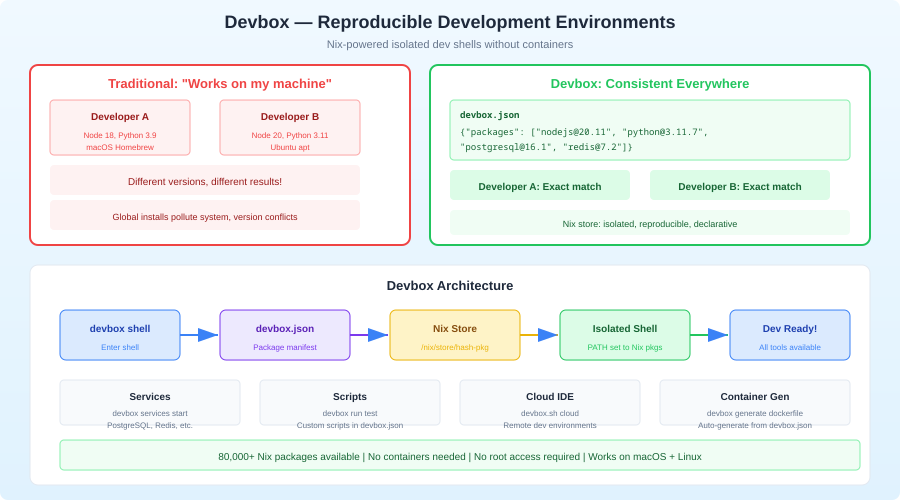
Every developer has experienced the "works on my machine" problem. You clone a project, try to run it, and spend an hour installing the right version of Python, the correct PostgreSQL client libraries, a specific version of protobuf, and whatever else the project silently depends on. Docker Dev Containers solve this by putting everything in a container, but they come with their own overhead: slower file I/O on macOS, GPU passthrough headaches, awkward editor integration, and the general friction of running your development tools inside a Linux VM.
Devbox takes a different approach. It creates isolated, reproducible development environments that run natively on your machine -- no containers, no VMs. Under the hood, it uses Nix to manage packages, but it hides Nix's notoriously steep learning curve behind a simple JSON configuration file and a handful of commands. You get the reproducibility of Nix without writing a single line of Nix expression language.
What Devbox Actually Does
When you run devbox shell in a project directory, Devbox reads a devbox.json file, installs the specified packages via Nix, and drops you into a shell where those packages are available. The packages are isolated to that project. They don't pollute your system PATH, they don't conflict with other projects, and they don't require root access. When you exit the shell, the packages disappear from your environment.
This means you can have one project using Python 3.11 and another using Python 3.12 without any version manager. You can have one project using PostgreSQL 15 and another using PostgreSQL 16. Each project declares exactly what it needs, and Devbox provides it.
Installation
Devbox requires the Nix package manager, but it can install Nix for you automatically.
# Install Devbox (installs Nix if not present)
curl -fsSL https://get.jetify.com/devbox | bash
If you already have Nix installed, Devbox will detect and use it. If not, it installs Nix in daemon mode with flakes enabled.
Verify the installation:
devbox version
Getting Started
Initialize a Project
cd your-project
devbox init
This creates a devbox.json file:
{
  "$schema": "https://raw.githubusercontent.com/jetify-com/devbox/main/.schema/devbox.schema.json",
  "packages": [],
  "shell": {
    "init_hook": [],
    "scripts": {}
  }
}
Add Packages
# Add specific packages
devbox add nodejs@20 [email protected] postgresql@16

# Search for available packages
devbox search redis

# Add a specific version
devbox add [email protected]
Devbox searches the Nixpkgs repository, which contains over 100,000 packages. When you specify a version like nodejs@20, Devbox resolves it to a specific Nixpkgs revision, pinning the exact package version for reproducibility.
Enter the Shell
devbox shell
You are now in an isolated environment with exactly the packages you specified. Run node --version, python --version, or whatever you installed, and it will be the version from your devbox.json. Exit the shell with exit or Ctrl+D.
Run Commands Without Entering the Shell
If you just want to run a single command in the Devbox environment:
devbox run node server.js
devbox run python manage.py migrate
Want more environment management guides? Get guides like this in your inbox — DevTools Guide delivers one free deep-dive every week.
The devbox.json Configuration
A practical devbox.json for a full-stack TypeScript project might look like this:
{
  "$schema": "https://raw.githubusercontent.com/jetify-com/devbox/main/.schema/devbox.schema.json",
  "packages": [
    "nodejs@20",
    "[email protected]",
    "postgresql@16",
    "redis@7",
    "[email protected]",
    "awscli2@2"
  ],
  "env": {
    "DATABASE_URL": "postgresql://localhost:5432/myapp_dev",
    "REDIS_URL": "redis://localhost:6379",
    "NODE_ENV": "development"
  },
  "shell": {
    "init_hook": [
      "echo 'Dev environment ready'",
      "export PATH=$PWD/node_modules/.bin:$PATH"
    ],
    "scripts": {
      "dev": "bun run dev",
      "test": "bun test",
      "db:start": "pg_ctl -D .devbox/virtenv/postgresql/data -l .devbox/virtenv/postgresql/logfile start",
      "db:stop": "pg_ctl -D .devbox/virtenv/postgresql/data stop",
      "db:migrate": "bun run drizzle-kit migrate",
      "setup": [
        "bun install",
        "devbox run db:start",
        "devbox run db:migrate",
        "echo 'Setup complete'"
      ]
    }
  }
}
Packages
The packages array lists every dependency your project needs at the system level. This replaces instructions like "install Node.js 20, make sure you have PostgreSQL 16, and install the AWS CLI." Every developer on the team runs devbox shell and gets the exact same tools at the exact same versions.
Environment Variables
The env object sets environment variables inside the Devbox shell. This is useful for development defaults that you don't want in .env files (which carry secrets-management baggage). These values are visible to anyone who reads devbox.json, so use them for non-secret configuration only.
Shell Hooks
The init_hook array runs commands when you enter the Devbox shell. Common uses include:
- Adding project-local binaries to PATH
- Printing status information
- Activating Python virtual environments
- Setting up shell completions
Scripts
The scripts object defines named commands you can run with devbox run <name>. Scripts run inside the Devbox environment, so they have access to all specified packages. A script value can be a string (single command) or an array (multiple commands run sequentially).
Services with Devbox
Devbox can manage background services like databases through its plugin system. When you add a package like postgresql, Devbox automatically configures it to run with data stored in your project directory:
# Start PostgreSQL as a background service
devbox services start postgresql

# Start all services
devbox services start

# Stop services
devbox services stop

# List running services
devbox services ls
This replaces the need for Docker Compose for local development services in many cases. The database runs natively on your machine with data stored in the project directory, making it fast and straightforward to manage.
Nix Under the Hood
Devbox is a user-friendly wrapper around Nix, the purely functional package manager. Understanding a few Nix concepts helps explain why Devbox works the way it does.
Nixpkgs: The Nix Packages collection contains over 100,000 packages. Each package is defined by a Nix expression that specifies its exact build inputs. This means two installations of the same package version are bit-for-bit identical.
The Nix store: Packages are installed to /nix/store/ in paths that include a hash of all build inputs. Multiple versions of the same package coexist without conflict because they live at different paths. Nothing is installed globally.
Reproducibility: Because Nix pins exact versions of every dependency (including system libraries), a devbox.json produces the same environment on every machine. If it works on your laptop, it works on your colleague's laptop and in CI.
Binary caches: Nix doesn't build everything from source. The official Nix binary cache provides pre-built packages for common platforms. Devbox also maintains its own cache for faster downloads.
You never need to write Nix expressions to use Devbox. But knowing that Nix is underneath explains why the reproducibility guarantees are strong, not just aspirational.
Devbox in CI/CD
Devbox integrates well with CI pipelines. Using the same devbox.json in CI that you use locally ensures your builds and tests run against the exact same tool versions.
GitHub Actions
name: CI
on: [push, pull_request]

jobs:
  test:
    runs-on: ubuntu-latest
    steps:
      - uses: actions/checkout@v4
      - uses: jetify-com/[email protected]
        with:
          enable-cache: true
      - run: devbox run test
      - run: devbox run build
The devbox-install-action installs Devbox and Nix, then caches the Nix store between runs. Subsequent CI runs only download packages that have changed.
Other CI Systems
For CI systems without a dedicated Devbox action, install Devbox directly:
curl -fsSL https://get.jetify.com/devbox | bash
devbox run test
The first run downloads packages. Caching /nix/store between runs makes subsequent executions fast.
Devbox vs Docker Dev Containers
Docker Dev Containers (the VS Code .devcontainer.json approach) solve the same problem but with different trade-offs.
File system performance: Devbox runs natively, so file I/O is at full speed. Docker on macOS and Windows uses a Linux VM, and file system mounts between the host and container introduce latency. This is noticeable when running bun install or compiling large projects.
Resource usage: A Docker dev container is a full Linux environment consuming RAM and CPU. Devbox adds only the specific packages you need, with negligible overhead.
Editor integration: Dev Containers require VS Code (or a compatible editor) with the Dev Containers extension. Your editor runs partly inside the container. Devbox works with any editor because it modifies your local shell environment.
Platform support: Docker Dev Containers give you a Linux environment regardless of your host OS. Devbox runs native packages for your platform, which means platform-specific tools work correctly but you can't test Linux-specific behavior on macOS.
Databases and services: Docker Compose excels at orchestrating multiple services with networking. Devbox's service management is simpler but less flexible for complex multi-service architectures.
When to choose Devbox: Your team uses various editors, you want native performance, your services are simple, and you trust your CI to catch platform differences.
When to choose Docker: You need Linux-specific behavior, you have complex service topologies, or your team is already invested in container-based workflows.
Devbox vs mise (formerly rtx)
mise is a polyglot version manager that replaces asdf, nvm, pyenv, and similar tools. It handles runtime versions but doesn't manage system-level dependencies.
Scope: mise manages language runtimes (Node.js, Python, Ruby, Go). Devbox manages everything, including system libraries, CLI tools, and databases. If your project needs libssl-dev, protobuf-compiler, or imagemagick, Devbox handles it and mise doesn't.
Speed: mise is faster to install packages because it downloads pre-built binaries directly. Devbox goes through Nix, which can be slower on first install (though binary caches help).
Reproducibility: mise pins versions but not system libraries. Two developers with different OS versions might get different behavior for packages that depend on system libraries. Devbox pins everything through Nix, providing stronger guarantees.
Simplicity: mise has a flatter learning curve. The .mise.toml file is straightforward and the tool is fast. If your project only needs specific runtime versions and doesn't depend on system packages, mise might be sufficient.
Complementary use: You can use both tools together. Use mise for fast runtime version switching during daily work, and use Devbox for the full reproducible environment in CI and for onboarding new team members.
Direnv Integration
Devbox integrates with direnv to automatically activate the environment when you cd into a project directory:
# Install direnv if you don't have it
devbox add direnv

# Generate a .envrc file
devbox generate direnv
This creates a .envrc file that activates the Devbox environment automatically. When you cd into the project, your shell environment updates. When you cd out, it reverts. No need to remember devbox shell.
# The generated .envrc
eval "$(devbox generate direnv --print-envrc)"
After running direnv allow, the integration is seamless.
Best Practices
Commit devbox.json and devbox.lock: The lock file pins exact Nixpkgs revisions. Without it, package resolution might differ across machines. Both files should be in version control.
Use scripts for common tasks: Define devbox run scripts for operations that developers repeat frequently. This documents how to run the project and ensures commands execute in the correct environment.
Pin package versions: Always specify major versions (nodejs@20 rather than just nodejs). This prevents surprise upgrades when Nixpkgs updates.
Use init_hook sparingly: Complex init hooks slow down shell startup. Keep them short and move complex setup to a devbox run setup script that developers run once.
Document the Devbox workflow in your README: Not every developer knows Devbox. A simple "run devbox shell to set up your environment" in your README saves onboarding time.
Conclusion
Devbox removes an entire category of developer friction. Instead of maintaining setup documentation that drifts out of date, you maintain a devbox.json that is the documentation. New team members run a single command and get a working environment. CI runs against the same tool versions as local development. And you get all of this without the overhead of containers or the learning curve of raw Nix. For teams that have struggled with environment consistency, Devbox is worth the switch.